Introducing Vibe Slack
A near-accurate working Slack prototype using Cursor.
If you’re building enterprise experiences, Slack is the most important third-party surface you’ll integrate with. Teams spend their entire workday there. Critical decisions get made there. Workflows get executed there. When you need to show how your product fits into a customer’s daily operations, you need to show it in Slack.
But prototyping Slack use cases with canvas tools is painstakingly slow. You’re manually creating static screens that can’t capture the dynamic nature of real conversations. You can’t show how a workflow unfolds over time. You can’t demonstrate how notifications appear. You can’t show how team members interact with your integration. Static screens fail to paint the real picture. They show what something looks like, but not how it feels to use in context.
When you want to show a contextual instance to stakeholders, you need something interactive that responds to their questions and demonstrates the actual experience.
Vibe Slack solves this. You can use it as a complete Slack clone prototype built entirely with Cursor. You can run npm run setup and get a fully contextual workspace in seconds. Any industry. Any company size. Any use case. All interactive. All ready for you to demonstrate your product in the environment where it actually gets used.
Bringing your company’s context
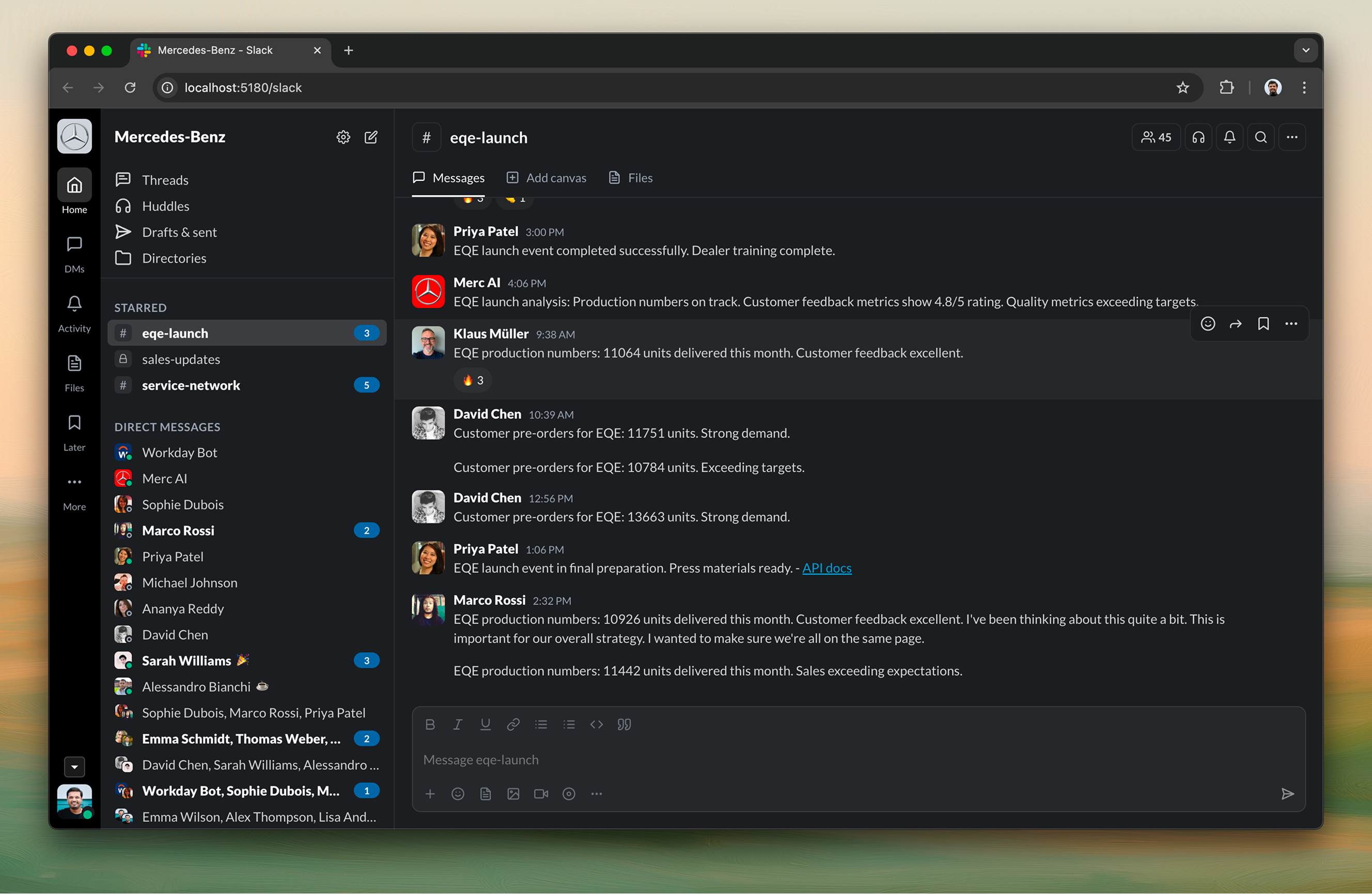
You can access the most powerful feature of Vibe Slack through the setup wizard. You can run npm run setup and this single command transforms an empty prototype into a fully populated, realistic workspace in seconds.
You can answer ten questions: company name, description, industry, size, and logo path; your name, country, gender, and role; and your team’s nationalities. From those answers, you get everything else generated automatically.
You can get channels auto-generated based on your industry. If you’re a tech company, you get #engineering, #dev-ops, and #security. If you’re a finance company, you get #compliance and #risk-management. You can have communication style inferred from company size and industry. Startups get casual messaging. Finance companies get formal tones. You can have team members auto-generated based on the nationalities you provide, with randomized gender distribution, role assignments, and special attributes like emoji-heavy or verbose messaging. You can have “Rovo” included as your AI assistant. You can get conversation history in every channel with themes inferred from channel topics and your industry. You can have file templates match your industry. API docs for tech. Compliance reports for finance.
You can complete the entire generation process in seconds. What would have taken you hours of manual data entry happens instantly. You get a result that feels authentic because it’s contextually aware of your industry, company size, and the information you provided.
Three-panel layout
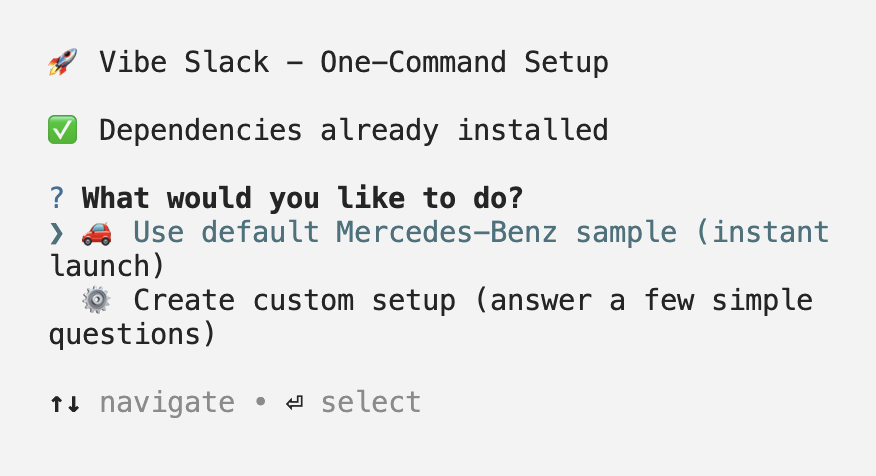
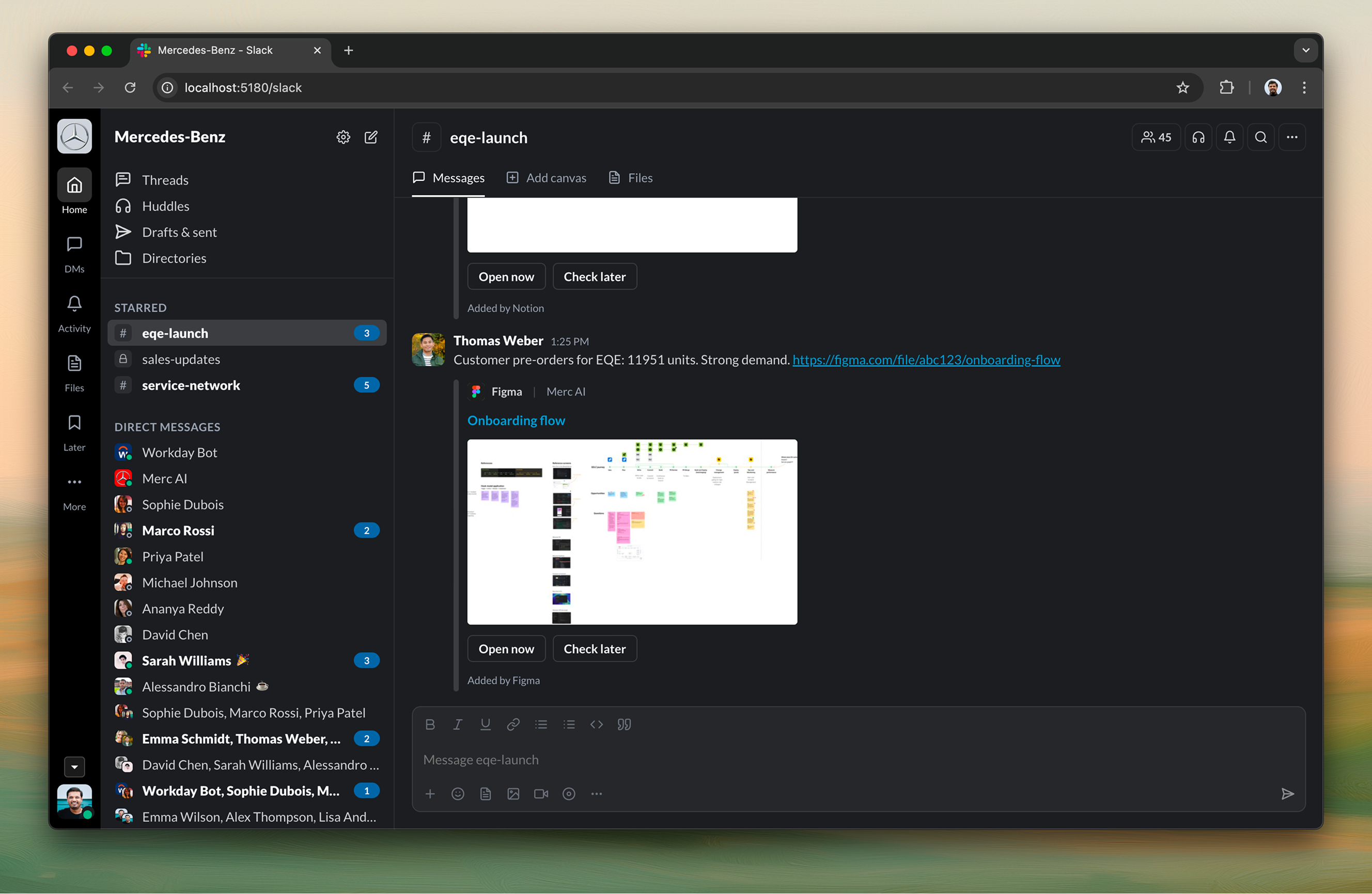
You can use Vibe Slack’s three-panel interface structure that matches Slack exactly. You can see channels and direct messages in the left panel. You can view the conversation thread in the center panel. You can access contextual details in the right panel. You get a layout that feels familiar because it matches Slack’s design exactly. You can experience smooth animations and natural transitions that make the prototype feel like a production application, not a mockup.
Multiple themes
When you’re demonstrating your product in Slack, you can replicate certain user journeys in both light and dark modes to match the rest of the experience you’re showing. You can switch between four distinct themes instantly. You can use two light themes, Solar Flare and Arctic Breeze, for presentations and demos. You can use two dark themes, Midnight Express and Obsidian Dreams, to reduce eye strain for extended use. You can experience seamless transitions thanks to CSS variables and Tailwind configuration. You get a complete visual experience with carefully crafted color palettes, typography, and spacing in each theme.
Real-time message streaming
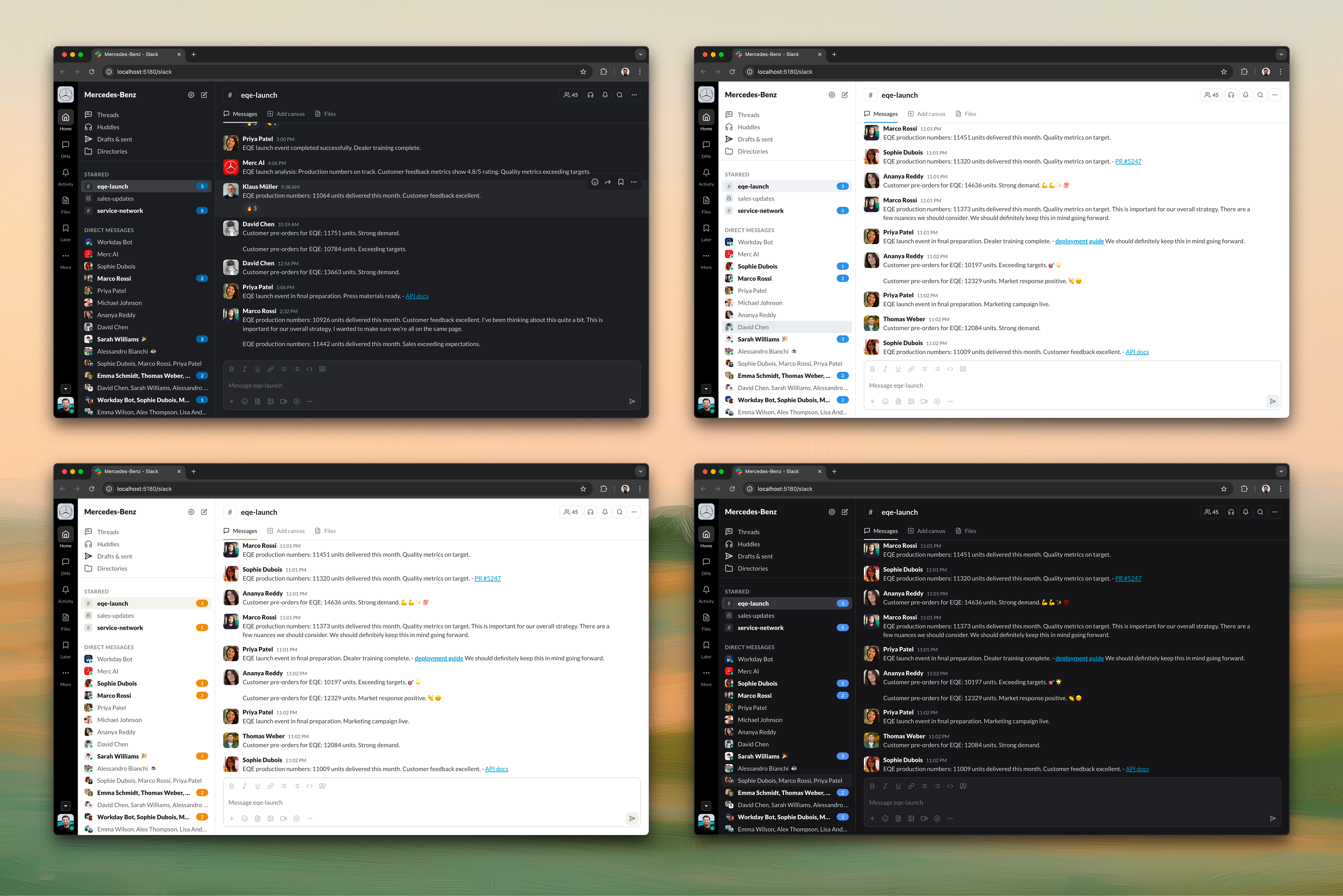
You can use Vibe Slack’s real-time message streaming system to make conversations feel alive. You can experience dual streaming that simulates how messages appear in a real Slack workspace.
You can have background streaming send messages to random chats every 5-10 seconds with randomized timing. You get the sense that conversations are happening across your workspace even when you’re not actively viewing them. You can have active chat streaming send messages to the currently selected chat every 8-12 seconds, making the conversation you’re watching feel dynamic and engaging.
You can rely on smart throttling to prevent unread message overload in the sidebar. When 40% or more chats have unread messages, streaming automatically stops. You get protection from an overwhelming interface that matches how real Slack works when you have many active conversations.
You can get message content that’s contextual to your simulated company, not generic. You can have messages contextually generated based on channel type, person traits, and your company context. You’ll see messages in #engineering read differently than ones in #sales. You can have verbose team members generate longer messages. You can have emoji-heavy people include more reactions. You get details that make each conversation feel authentic to your specific workspace.
You can have history management cap each chat at 40 messages. You can have older messages archived automatically, keeping conversations focused and preventing performance issues. You get behavior that matches how real Slack handles long conversation threads.
You can use the streaming system to transform Vibe Slack from a static prototype into a living, breathing workspace that demonstrates how your product fits into an active team environment.
Rich emoji reactions
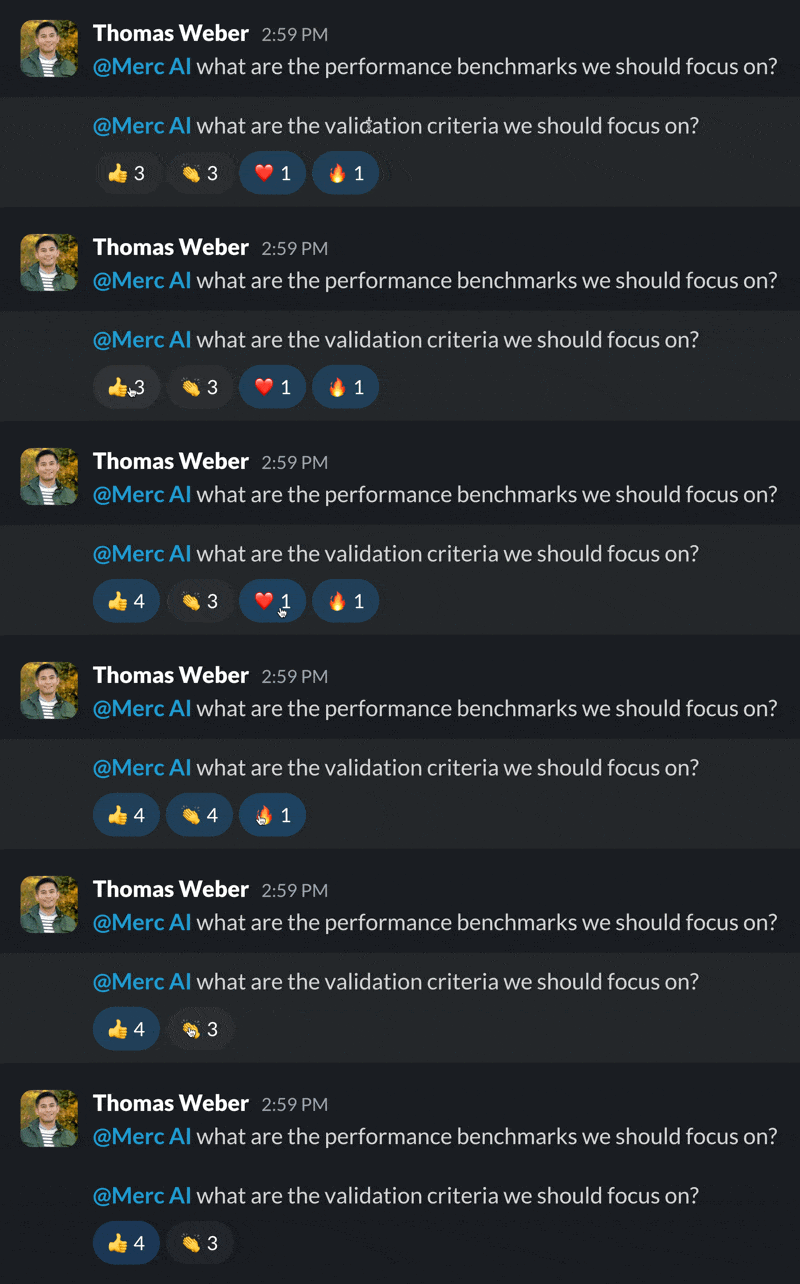
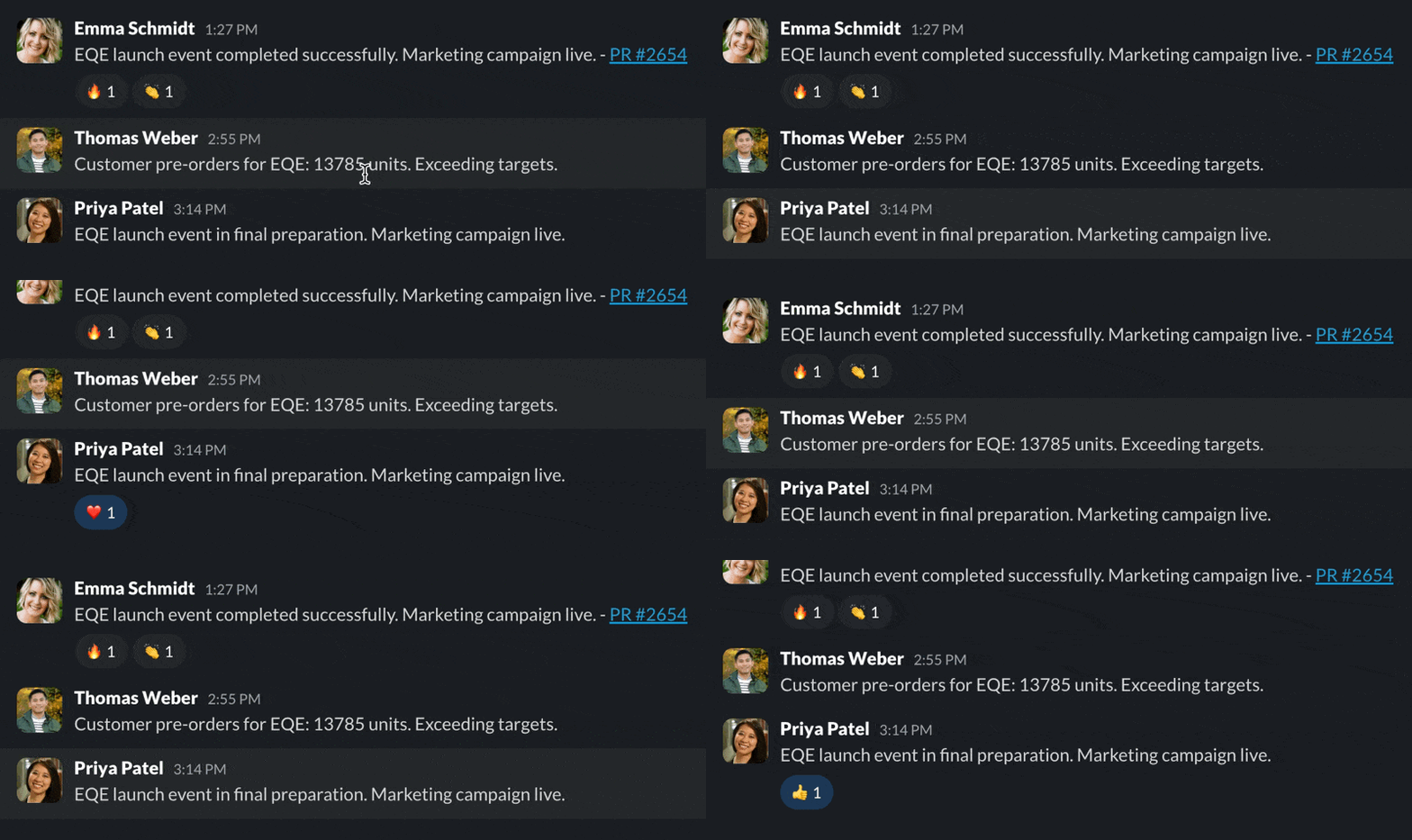
You can communicate in Vibe Slack beyond just simple text messages. You can react to messages with emoji to express agreement, celebrate wins, or acknowledge without cluttering the thread. You can use the full range of emoji reactions with smooth animations. You can add new emoji reactions directly from the reaction picker. You can have multiple people react to the same message, creating a realistic sense of engagement and making conversations feel alive.
You can experience the chat thread anchored to the bottom, just like in Slack. When you add a new reaction emoji, you can see it push the message stream up to accommodate the expanded reaction area. You get behavior that matches Slack’s exact interaction pattern. You can see the thread stay anchored while reactions expand naturally. You get these small details that make the difference between a prototype that feels real and one that feels off.
Emoji statuses
You can communicate status through emoji statuses that appear next to your name throughout the interface. You can set your status to communicate availability, mood, or current activity. You can give others context about your state without requiring a conversation. You get small signals that make the workspace feel alive.

Online and offline badges
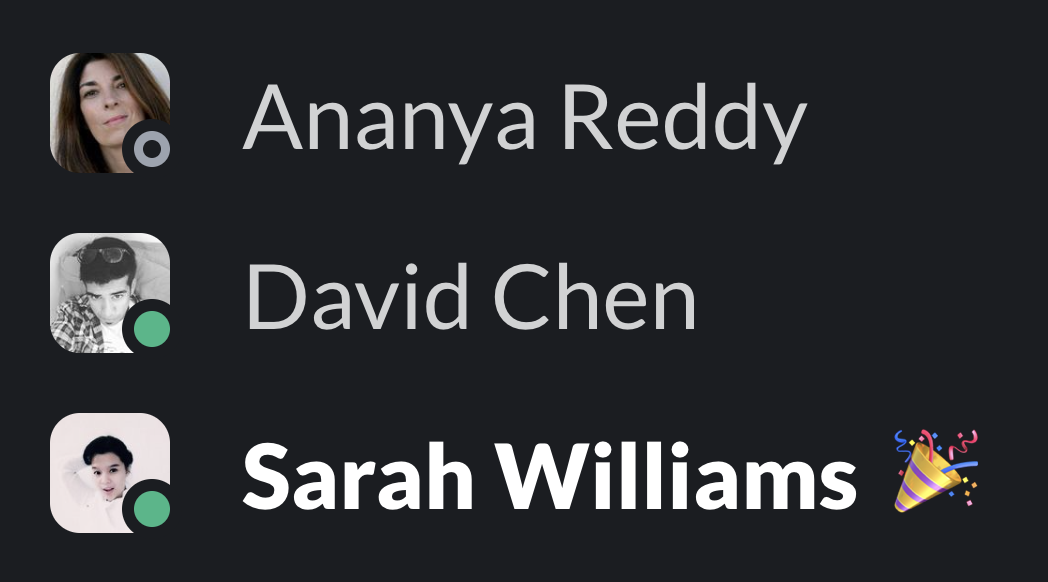
You can see presence indicators showing who’s currently active with online and offline badges. You can see green badges for who’s online. You can see gray badges for who’s offline. You can see yellow badges indicating away status. You can see these badges in channel member lists, direct message conversations, and group direct messages, giving you a real-time sense of who’s available for collaboration.
You can see badges that use real masks where the gaps behind the status dots show the background color. You can experience hover fill and highlight fills that work in a way that makes them look like real gaps. You get a nifty workaround that achieves the visual appearance just right. You get attention to detail that ensures the badges look exactly like they do in the real Slack app.

Rich message composer
You can use the message composer with rich formatting, file attachments, and emoji. You can see formatting options appear as you type. You can drag and drop files directly into the composer. You get a composer that feels responsive and polished, matching the quality of production messaging applications. You get the kind of detail that makes stakeholders take your prototype seriously.

File embeds and previews
When you share files in channels, you can get rich previews with thumbnails, metadata, and download options. You can see images display inline. You can see documents show previews. You can see code files render with syntax highlighting. You get file sharing that feels integrated and natural, rather than requiring external downloads to understand what was shared.
You can use five types of file embeds that are supported out of the box: Loom, Figma, Confluence, Notion, and Jira. You can see realistic thumbnails and metadata that match how these tools appear in Slack. You can add more file embed types by adding more thumbnails to support even more types. You can easily demonstrate how your product integrates with any file sharing service. You get previews that matter because they’re what people actually see when they use Slack.
Channel actions and management
You can manage channels through contextual actions accessible via right-click menus. You can mark channels as read, mute them, archive them, leave them, and perform other management tasks exactly as you would in Slack. You can use actions that work seamlessly, providing a familiar experience that requires no learning curve. When you’re demonstrating workflows, you get details that matter. You can show people things that work the way they do in real Slack.
Marking messages as read
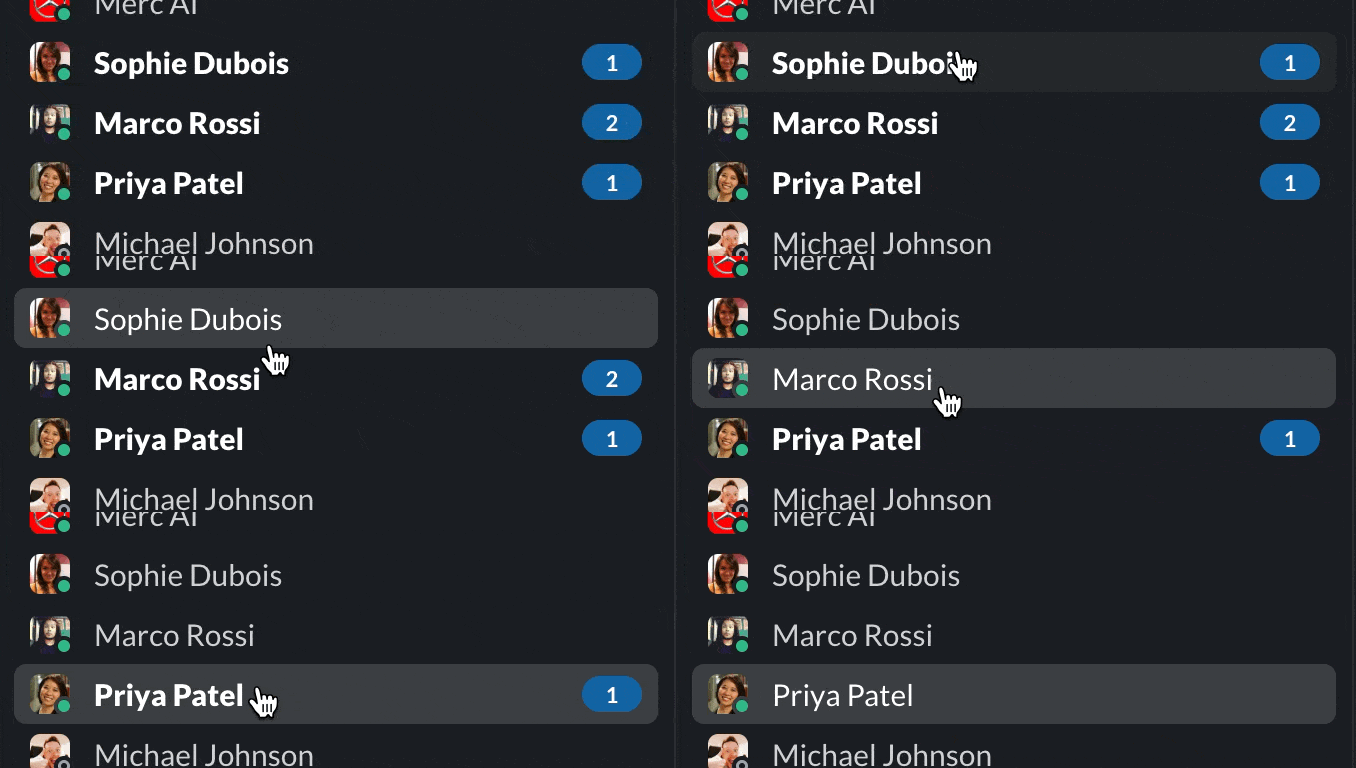
You can manage unread messages through mark-as-read functionality. You can mark channels or entire conversations as read with a single click. You can experience the subtle delay before the unread badge clears, just like in Slack where the mark as read action isn’t instant. You get this behavior simulated with a 300ms delay. When you click mark as read, you can see the unread indicators update after a brief pause, matching the real Slack experience and giving you control over your attention and focus.
Having your own AI agent in chat
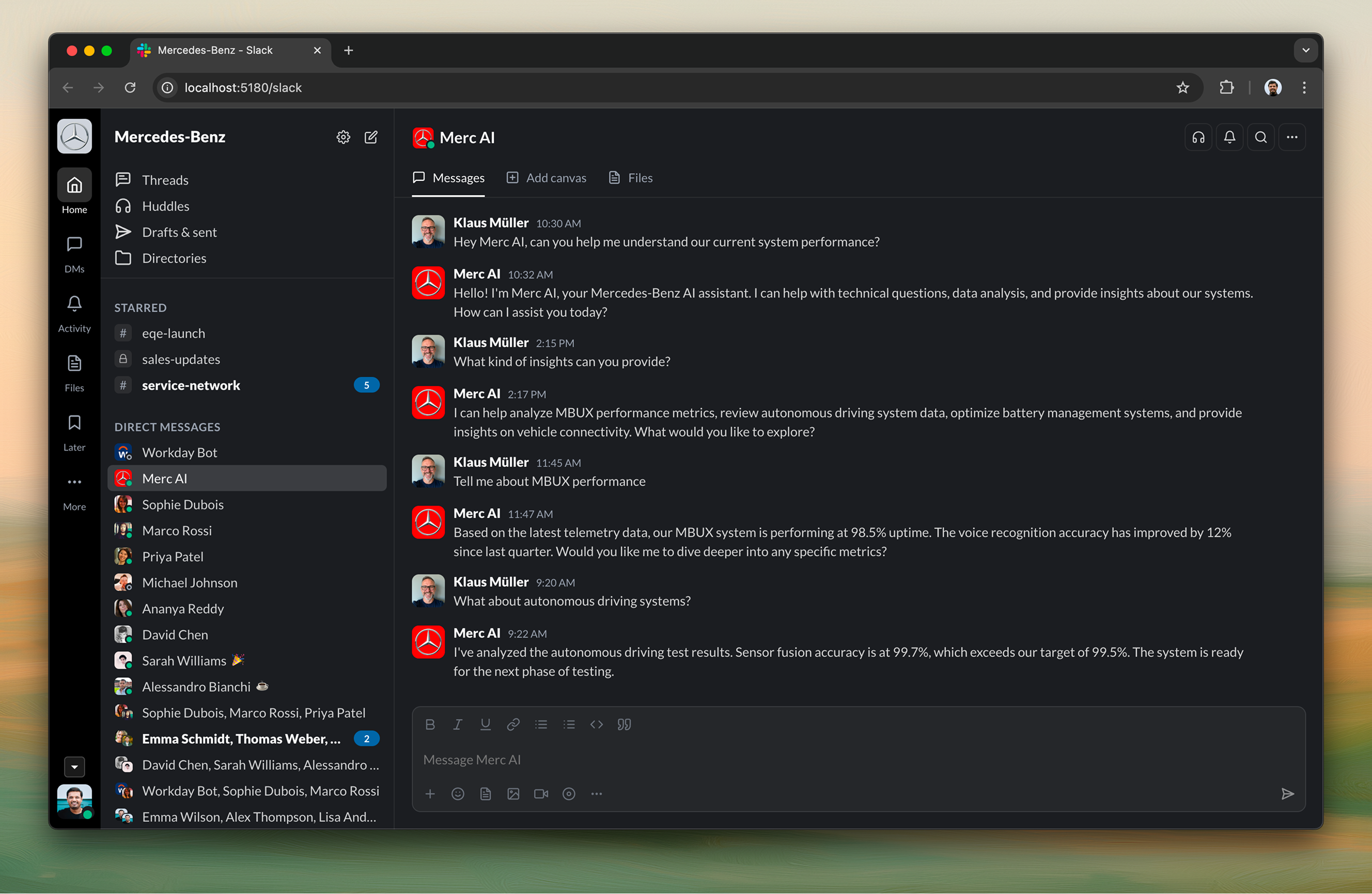
You can have your own AI assistant created based on your company context. You can see this demonstrated with a fake Merc AI as an example, but you can create your own AI agent operating in Slack as needed. You can have the assistant appear as a bot in your workspace that understands your company context. You can use it for information lookup, draft generation, meeting summaries, and task extraction. You get a company-native AI assistant that understands your industry, your team structure, and your communication style. You don’t get a generic assistant. You get one tailored to your specific workspace.
Third-party integrations and workflows
You can see how third-party integrations work through connectors in Vibe Slack, showing how workflows can trigger actions and operate on Slack as the surface. You can see the Workday integration example showing a leave request workflow: when someone requests leave, their manager receives a message through Workday in Slack. You can demonstrate how enterprise tools integrate with Slack to surface notifications and actions directly in the conversation flow.
You can modify the connector to simulate any other workflow with actions. You can adapt it to show how your product integrates with Slack, how notifications appear, how approvals work, or how any enterprise workflow surfaces in Slack. You can use the connector pattern to easily demonstrate integrations with any third-party tool.

Download Vibe Slack
You can download Vibe Slack as an open-source prototype. You can fork it and start tinkering with it right away. You can find everything you need to get started in the repository, including the setup wizard, all the components, and the theme system.
You should go through the README.
